Toppings / Modifier / Preparation Note
Home / Documentation /
Outlet
Item
POS
Kitchen Panel
Printer
Order Status Screen
Toppings
Promotion
Delivery Management
Combo Item
Item Variation
Product
Stock Transfer
Attendance
Manage Users with Access
Expense
Supplier Due Payment
Customer Due Receive
Report
- Register Report
- Z Report
- Product Analysis Report
- Daily Summary Report
- Food Sale Report
- Daily Sale Report
- Detailed Sale Report
- Consumption Report
- Stock Report
- Low Stock Report
- Profit Loss Report
- Attendance Report
- Supplier Ledger Report
- Customer Ledger Report
- Purchase Report
- Expense Report
- Waste Report
- Tax Report
- Food Menu Sale By Category Report
- Waiter Tips Report
- Audit Log Report
- Available Loyalty Point Report
- Usage Loyalty Point Report
- Transfer Report
- Production Report
Self Order/QR Code Order
Online Order
Reservation
Multiple Currency
Dashboard
SMS (Short Message Service)
Software Update
Export and reset daily sales
Reset Transactional Data
License Uninstall
Credits
Item Preparation Note
Using this feature you can add additional instructions from customers for the Chef to make the food.
If you want to add a preparation note after adding the item to the cart then click on this icon, it will open a window where you can add or edit the preparation note and also the system may open the modal on first click as per your setting.

System will show notes in the kitchen panel.

It will show on KOT like that.

Recipe and Costing, Item Modifier with Price
Item modifier is also called Toppings. Sometimes customers may ask for some additional small items along with the main dish and those small items are called Item Modifiers. In this system you can have multiple Item Modifiers with their recipe and can calculate costing, set their price etc. And finally you can assign modifiers to Food Menu items that apply with that food menu. Please follow below guideline how to add an Item Modifier to the system along with its Recipe, Costing and Price.
Go to “Item” from the left menu, and then click on “Add Modifier”.

Here, you can add ingredients with their consumption and cost. And after clicking on submit system will show the modifier data and also you can edit from the actions.

Assign Different Modifier to Different Food Menu
Go to Food Menu list.

Click Assign Modifier and check all of your modifiers associated with the Food Menu.

How modifier works in POS and deducts stock
Only selected Modifiers shown on the POS screen.

Let’s select the Onion Ring Modifier for this Food Menu.

Let’s see the stock of all ingredients that we add for this Modifier, so go to the Modifier edit form and check all of the ingredients.

Now we will check the stock value for those ingredients, then go to the stock menu.

Here stocks are- -Avocado is 38Pcs
-Black vinegar is 6Kg and 867g
-Chicken is 6Kg and 974g
Now let see the used consumption of modifiers.
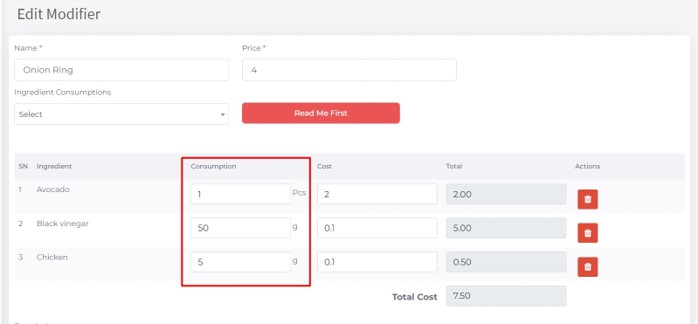
-Avocado is 1Pcs
-Black vinegar is 50g
-Chicken is 5g
Now go to the POS screen and place an order with that.

Check ingredients stock for deducted status which are used in the selected modifier.


Before place order stocks was
-Avocado is 38Pcs
-Black vinegar is 6Kg and 867g
-Chicken is 6Kg and 974g
Used consumption on modifier profile.
-Avocado is 1Pcs
-Black vinegar is 50g
-Chicken is 5g
After place order and generate invoice with 1 Quantity of Onion Ring.
-Avocado is 37Pcs (38 – 1 = 37)
-Black vinegar is 6Kg and 817g (867 – 50 = 817)
-Chicken is 6Kg and 969g (974 – 5 = 969)