Loyalty
Home / Documentation /
Outlet
Item
POS
Kitchen Panel
Printer
Order Status Screen
Toppings
Promotion
Delivery Management
Combo Item
Item Variation
Product
Stock Transfer
Attendance
Manage Users with Access
Expense
Supplier Due Payment
Customer Due Receive
Report
- Register Report
- Z Report
- Product Analysis Report
- Daily Summary Report
- Food Sale Report
- Daily Sale Report
- Detailed Sale Report
- Consumption Report
- Stock Report
- Low Stock Report
- Profit Loss Report
- Attendance Report
- Supplier Ledger Report
- Customer Ledger Report
- Purchase Report
- Expense Report
- Waste Report
- Tax Report
- Food Menu Sale By Category Report
- Waiter Tips Report
- Audit Log Report
- Available Loyalty Point Report
- Usage Loyalty Point Report
- Transfer Report
- Production Report
Self Order/QR Code Order
Online Order
Reservation
Multiple Currency
Dashboard
SMS (Short Message Service)
Software Update
Export and reset daily sales
Reset Transactional Data
License Uninstall
Credits
Loyalty Setting
Go to your “Settings” from the left menu to set the loyalty setting.

Loyalty Point: Select Enable from here to enable loyalty features in your system. Minimum Loyalty Point to Redeem: Define the Minimum Loyalty Point to Redeem. Loyalty Point Rate: Define 1 loyalty point is equal to how much money as per your currency.
Loyalty Point for Each Item
Go to your “Item” from the left menu and go to the food menu add/edit form. You will be able to set the loyalty point for each item. System will get the loyalty point when customers earn it during order.

Customer Loyalty Account
Place an order with a food that has loyalty points and then select a customer except Walk-in Customer. And at the first order you will not see any available loyalty points in the customer account but from the next order you will be able to see available loyalty points that this customer earned from his previous orders.

First order with a loyalty point available food menu. Now generate the invoice for first earning the loyalty point.
Let’s make a second order with the same

Redeem Loyalty Point
Customers need to earn a minimum 40 loyalty points for redeem as per our setting.
Let’s finish the last order then this customer will earn 32+32 = 64 loyalty points. And then place another order to redeem loyalty points and other’s payment method.

System will allow you to add both loyalty points and other payment methods together in one order.

System not allow less than 40 loyalty points due to setting, in setting our minimum usage loyalty point was 40. So we need to increase the order amount to increase usage loyalty points required.
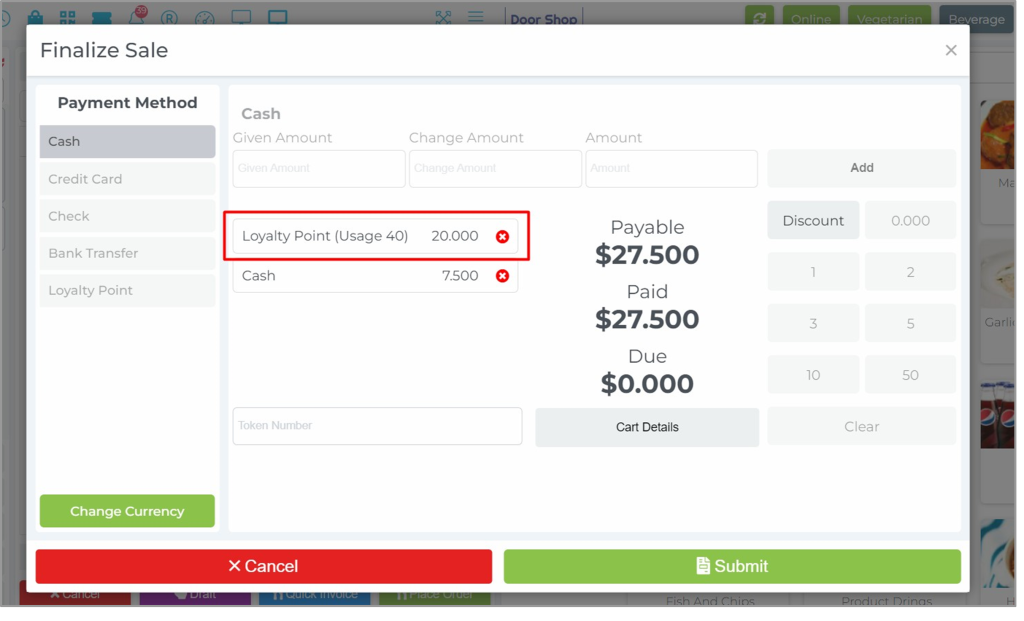
Here we used 40 loyalty points for $20 as we know in setting the loyalty point rate was 0.5. Invoice looks like-

Pre-made Food and Production
Pre-made food is also food that is used to make final food. Like you use pizza dough to make pizza, here pizza dough is pre-made food. A pre-made food has its own ingredients to prepare and it has its own stock. So when you make a pre-made food, ingredients used for that pre-made food get deducted from stock and stock of the pre-made food gets increased when you will do it as a production final. And also as you use that pre-made food same as an ingredient in a food so when you make sale of that food item that pre-made food stock also gets down.
Click on “Add Pre-Made Food” to add a pre-made food item.

Add your pre-made food name and add all ingredients to complete it. Consumption Unit- In which unit you make food in production or in creating any food profile. Cost Per Unit – What will the cost be in the purchase unit? Low Qty- System will be shown in low Quantity stock when your quantity will less with that field data.
Check ingredients stock which are used in the Pre-made Food.
Available stock.

Also need to check the premade food

Click on “Production” and click on Add Production.

Here is- Status – Final means, system will consider it final production and increase the pre-made food item stock and deduct the ingredients stock that are used during pre-made food add.

Check pre-made food stock which is used in the Production.

Check ingredients stock for deducts status which are used in the pre-made food


Order Cancel and Delete Log and Report
Check Cancel and Delete Order Report by Admin From Backend to Prevent Fraud
How to cancel and delete an order. Go to the POS screen and place an order.
For Cancel the order.

For Delete the order. Go to the sales list and delete the order that’s already generated the invoice.

Cancel land delete log report, now go to Report menu and click on Audit Log Report

Here are the details of the log. And you may filter with the user, who did the action.