Order type needs to be selected before selecting item:
Using this feature you can select your order type when selecting an item to add to the cart. Some do not like to set their order type as default for this reason this feature will help you.
Go to the settings then select “Default order type” set as “None” and submit to save this change.
For selecting None here you can see there is no default order selected. Now try to add an item to the cart.
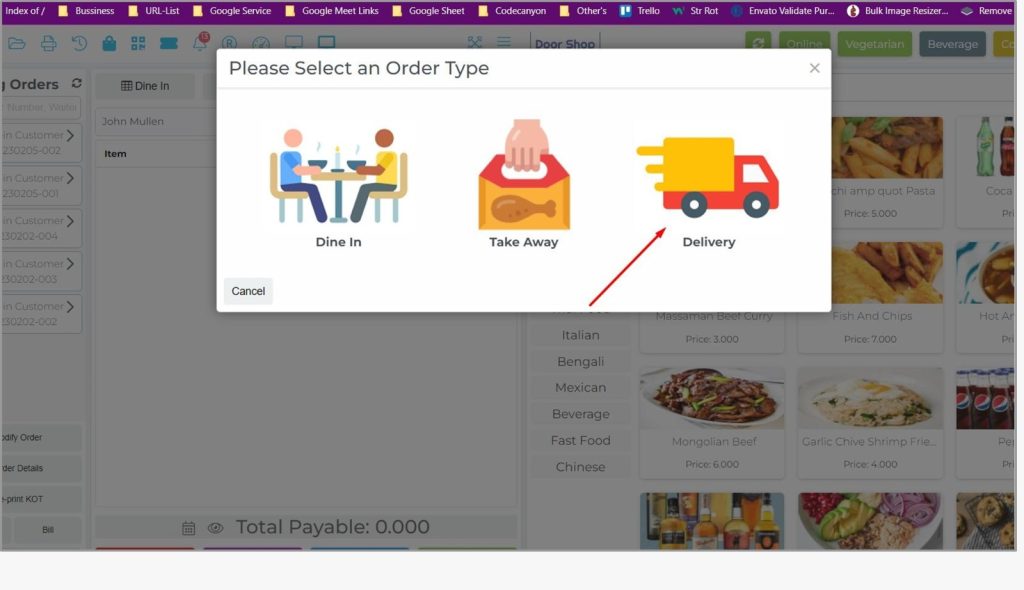
The system will provide the selecting option of order type modal before adding the food to the cart.
Now select an order type from here as per your need.
Then add items to the cart and then place your order.
After placed the order, system will unset the order type
Area/Floor
you can add your seating area or floor by using this module that can be identified easily.
Go to “Settings” from the left menu, and then click on “Add Area/Floor”.
In the “Area/Floor Name” field enter your area/floor name here.
In the “Description” field enter the description of the area/floor.
Click on the “Submit” button to save the “Area/Floor” information.
List Areas/Floor: You can see all “Areas/Floor” in the list view
Here you can edit or delete any Areas/Floor by clicking on the Action button.
When you are going to add any table from “Add Table” here you can select your “Area/Floor” from the dropdown and your created “Area/Floor” will show here.
Table
Using this module you can manage your tables floor-wise and also can add tables or can assign how many persons can seat.
Go to “Settings” from the left menu, and then click on “Add Table”.
Area/floor: Select your Area/Floor from this section for which floor you want to add a table.
Table Name: Here enter your table name or table number that you can easily find.
In the “Position” field enter the position of your table.
In the “Seat Capacity” field enter the seating capacity of the table.
In the “Outlet” section select the specific outlet to which you want to add a table in case you are using the Multi Outlet version. In the “Description” field you can enter the description of the table.
Click “Submit” to save this table information.
Go to “Settings” from the left menu, and then click on “List Table”.
List Table: Here you can see all Tables in the list view.
Here you can edit or delete any Table from the Action column in the list.
List Table: Here you can see all Tables in the list view.
Here you can edit or delete any Table from the Action column in the list.
In the POS screen, you can see the tables which add in above.
In the “Order” field, a number will auto-generate.
Person: In this field enter the number of persons you want to assign to this table.
By clicking the “Add” button the entered person number will be assigned to the table. Then click “Submit” to save the changes.
Note: We will know later details about this
Here you can manage your tables. And you can filter area/floor wise from left.
Working with Running Orders
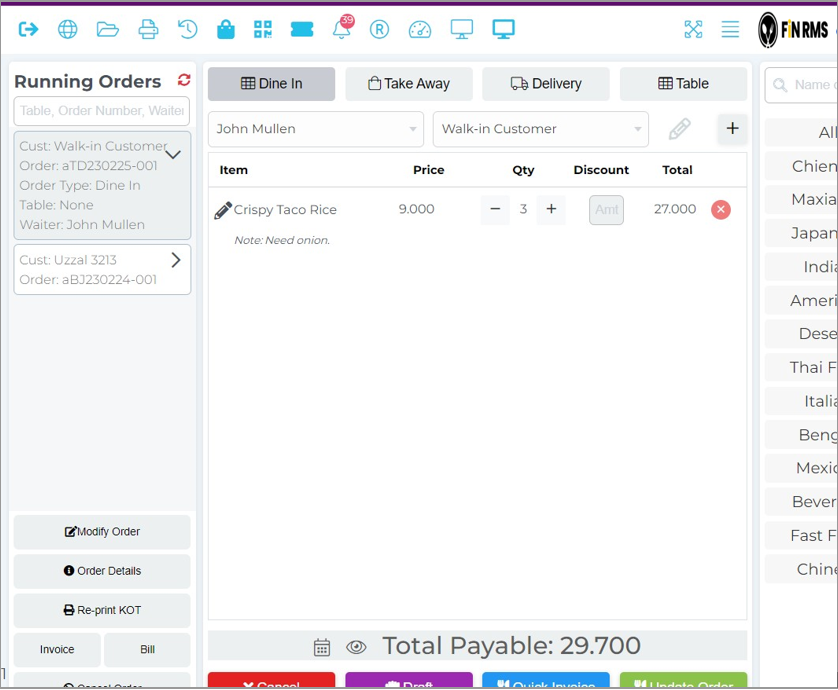
All of your running orders will be shown in the running order section.
Go to the software, and then click on the “POS” button.
Add some items to the cart by clicking over the item. Click the “Dine In” order type or you can select any other type.
Select the “Table” button to choose a table for this order.
Select a Table with that order
After placing the order, the system will print the KOT automatically and the last added order will show in the running order section.
After placing the order, the system will print the KOT automatically and the last added order will show in the running order section.
In case, you need to change your tableNow update the order table number.
Now select the last added order from running orders and click on the Reprint KOT to print the KOT again, here you will get two option, first one is All Items, that means system will consider all of items in print preview.
After click on All Items button
Second one is New Items, now click on this button and the system will show blank, because we already printed, the system will consider only updating qty of items or new added items only.
Let’s add a new item after modifying the order.
Update the order and click on New Items again.
Print Bill: Select the order and click on the Bill button.
Bill preview:
Create Invoice: Select the order from running orders and click on invoice button and then you will get two options, click on Single Pay, we will discuss Split bill later(two options will be shown here in case your order type is Dine or otherwise system will be shown the finalize modal directly).
Invoice print preview.
For Take Away Order: Using this you can place a Take Away order for your restaurant. And it will be the same process of Dine-in type order.
For Take Away Order: Using this you can place a Take Away order for your restaurant. And it will be the same process of Dine-in type order.
After selecting the delivery order system will consider different delivery partner-wise prices in case you have a delivery partner otherwise the system will consider your default delivery price.
Reprint KOT
Somehow you may need to print the KOT again after placing the order like: the paper is empty in one of the KOT printers, paper waster, or you didn’t set up any auto KOT printing using the print server. So in that case, you can Reprint the KOT.
Select an order from the running order section then click on Reprint KOT.
System will show two buttons, All Items means, system will print all items every time and New Items means it will print only new items or updated quantity after modify the order.
After clicking on the Modify Order button.
Only new food printed on KOT.
Bill
Sometimes you need to print a bill for a customer before invoicing to show him how much he needs to pay, in that case, using this feature you can print the bill before the invoice.
Select the order from the left side under the Running orders.
Then click “Bill” and it will print an invoice for this order.
After clicking “Bill” the bill is printed for the selected order.
Invoice & Finalize Sell
Select the order from the left side under the Running orders. And click on the Invoice.
If your order type is Dine-in then the system will show two buttons here, one of Split Bill and another one is Single Pay, we will get more details about Split Bill in another section. If your order type Take Away or Delivery then the system will finalize modal directly.
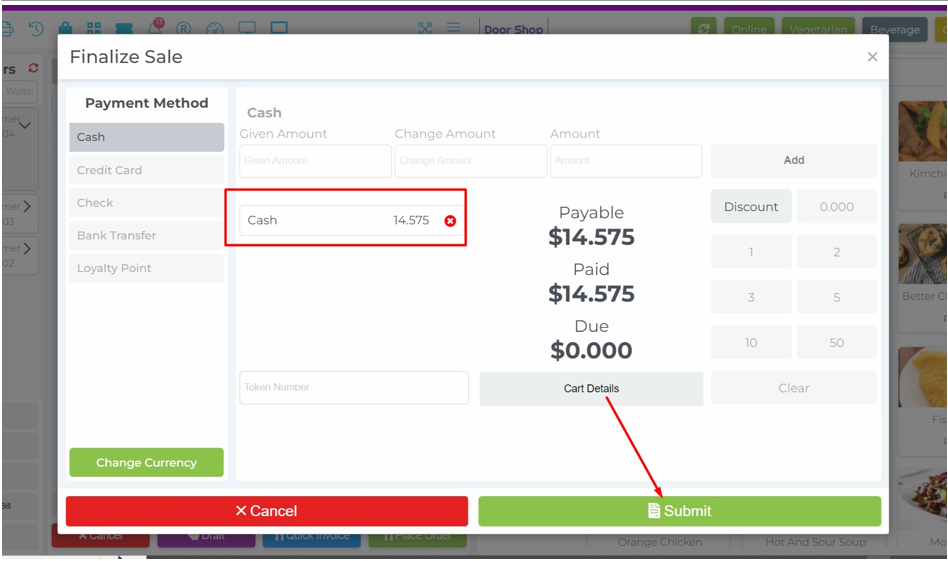
You will get multiple payment options in one sale. So, click on your payment method from the left side then add the amount and then click on Add button.
You can set a discount instantly during the finalized sale.
Invoice
Split Bill
The number of guests evenly divides the entire bill, and each person pays an equal share, regardless of his order.
The number of guests/persons is 3 that means the system will allow a maximum 3 split.
Select and click on Split Bill
System will consider a maximum 3 split or in case you need less split like 2 then put the total split 2 and click on Go.
Select the right side box and then click on the Plus button to distribute the food to each guest. Also, you can add Discount, Charges, and Tips separately.
Finally click on the Checkout button to generate a single invoice.
Modify Order
After placing an order, the customer may ask for new foods, or he may add some note on his ordered items, or he may cancel any item from his order. In that case, you can modify the order and add or delete any item and also can change the quantity as per your need.
First, add some items to the cart and place an order. Then select the order from the running order and click on the Modify Order button.
Now you can update the quantity as per customer request.
You can add new items in the cart.
You can add a preparation note for the chef for any food before you start cooking.
After updating the cart then the system will show that note in KOT or kitchen panel(in case no printer is available in the shop).
For KOT Print Paper.
Note: System will print all items if you click on All Items otherwise the system will print only new items or updated quantity items. For the Kitchen Panel. System will allow you to remove the item before it starts to cook.
System will allow you to remove the item before it starts to cook.
After removing the item.
But if I already start the cook from the kitchen panel. It will not allow me to remove the item because food has already started cooking. Let’s change the status of a cook from the kitchen panel.
Now re-select the order from the running order and click on the modify order button.
Order Details
Select the order from the running order list and click On Order Details button.
Select the order from the running order list and click On Order Details button.
Pre and Post Payment System
Here there are two types of ordering processes. One is Prepayment where customers have to pay in advance when ordering the food. In the Post Payment option, customers can pay bills after eating or taking the food. You can set any of those based on your restaurant type.
Here in the Settings you can see the “Pre or Post Payment” field. Now select the Pre Payment from here and click submit to save the changes.
Now go to the POS screen and place an order. System will popup the finalize modal after placing the order for pre-payment. And the system will not allow you to modify the order because the customer already paid
the invoice.
After leaving the guest you just need to close the order from this button.
How offline sync works
Sometimes the internet may go suddenly in your restaurant and customers are waiting to place their orders. In that very crucial moment our system will work uninterruptedly. It will automatically detect that the internet is gone and start storing data in your local database, you have to do nothing but to continue your ordering process. And when the internet will come again the system will detect that too automatically and send all locally stored data to your server.
Note: Don’t reload this page when you are in offline mode or not connected with the network.
When you are connected to the network it will show you like that.
Now what you will see when the system is offline, let’s disconnect the internet connection.
Here is 1 means, the system generated an invoice and stored that locally, when the internet connection is back, the system will change the status offline to online and sync the offline generated invoice automatically.
Future Sales
Sometimes you may need to add the orders for future processing, then these features will help you.
Let’s select any order type and add some items in the cart. And click on the calendar icon for selecting the future date.
Select the future date.
After placing the order, the system will not show the order in running order section, this will show on future sale section, click on Future Sale button section in top position.
In the Modify Order you can modify the selected order. Set as Running Order means, after clicking on the button system will move this future order as Running Order for generating the invoice.
Register Details
Here, system will show all of the payment methods from the system and put the opening balance for the waiter.
Go to the POS screen and check Register Details.
At the end of Waiter/Cashier duty they will close the register
Here the system will show all of transactional data like ase opening balance, purchase, Sale etc separated by payment method. And the system will be shown the summary of register details at the end of the page.