Dashboard
Home / Documentation /
Outlet
Item
POS
Kitchen Panel
Printer
Order Status Screen
Toppings
Promotion
Delivery Management
Combo Item
Item Variation
Product
Stock Transfer
Attendance
Manage Users with Access
Expense
Supplier Due Payment
Customer Due Receive
Report
- Register Report
- Z Report
- Product Analysis Report
- Daily Summary Report
- Food Sale Report
- Daily Sale Report
- Detailed Sale Report
- Consumption Report
- Stock Report
- Low Stock Report
- Profit Loss Report
- Attendance Report
- Supplier Ledger Report
- Customer Ledger Report
- Purchase Report
- Expense Report
- Waste Report
- Tax Report
- Food Menu Sale By Category Report
- Waiter Tips Report
- Audit Log Report
- Available Loyalty Point Report
- Usage Loyalty Point Report
- Transfer Report
- Production Report
Self Order/QR Code Order
Online Order
Reservation
Multiple Currency
Dashboard
SMS (Short Message Service)
Software Update
Export and reset daily sales
Reset Transactional Data
License Uninstall
Credits
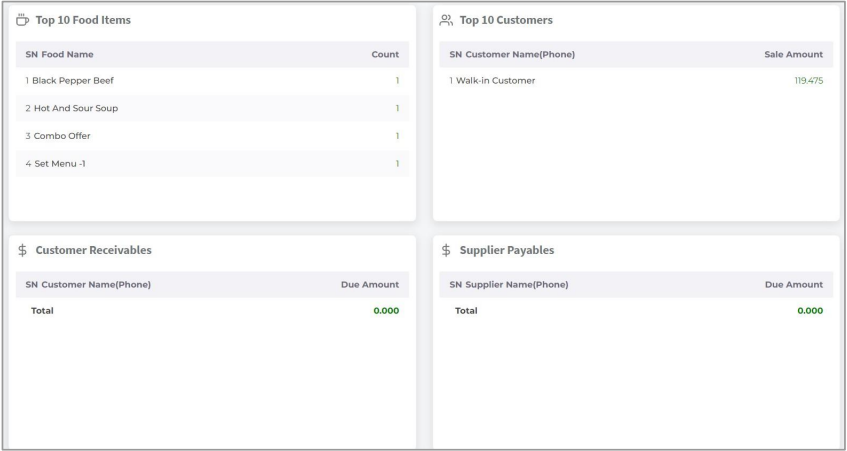
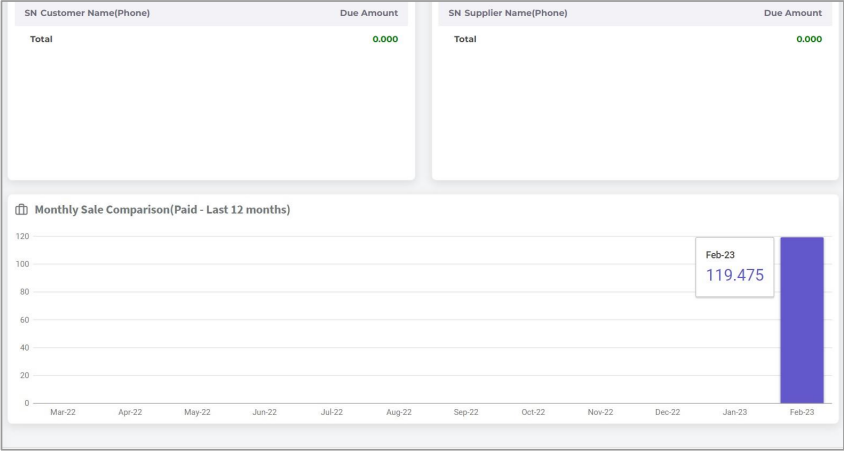
In the dashboard you can get your outlet’s summary in a short view.
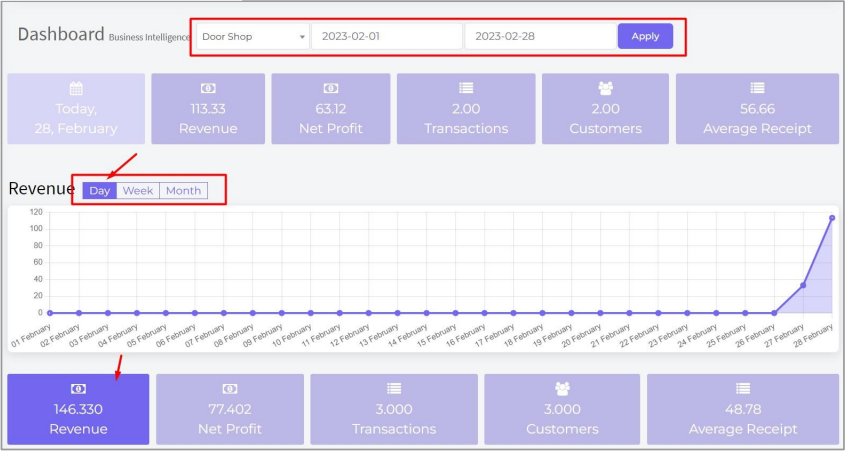
In the top you will get today’s sales summary when you first come to the Dashboard. System will consider only today’s summary in this section until you apply any date range.
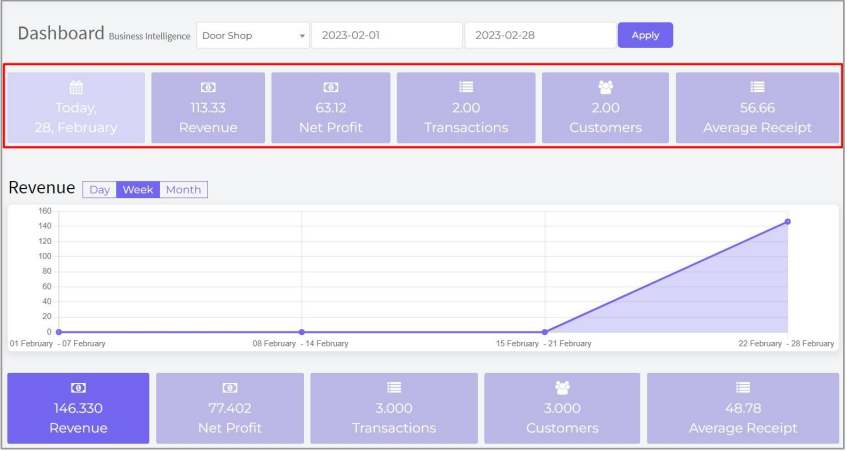
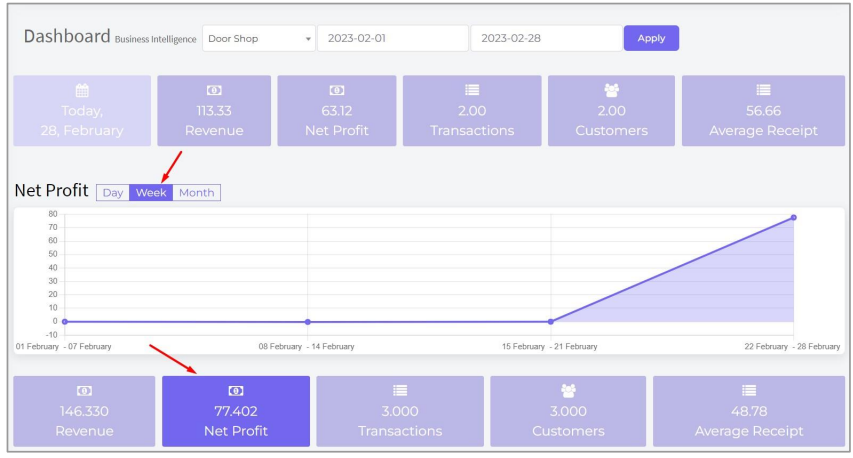
And here is the graph showing the data with day by day of revenue in default but users can check week or monthly also by clicking on the button. You can see Net Profit, Transaction, Customers, Average Receipt by clicking on the below buttons.
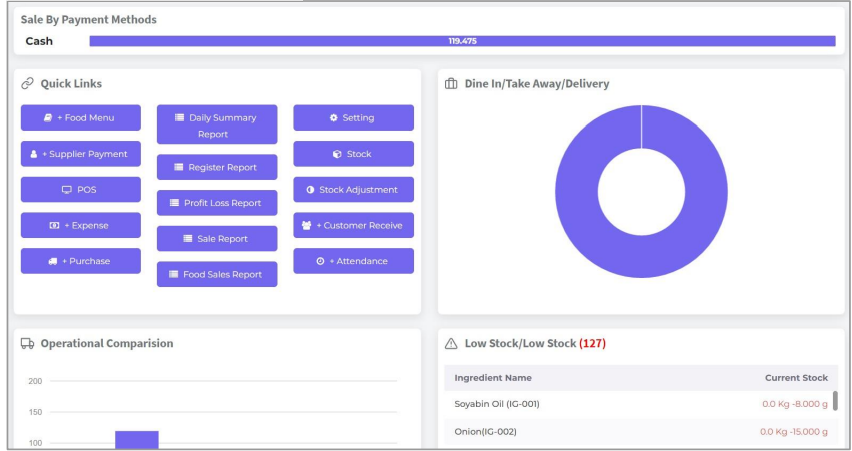
Sale by payment methods shown here, and some of the quick links here, users will be able to go to the module quickly by clicking on a link.
Sale by payment methods shown here, and some of the quick links here, users will be able to go to the module quickly by clicking on a link.