Self Order/QR Code Order
Home / Documentation /
Outlet
Item
POS
Kitchen Panel
Printer
Order Status Screen
Toppings
Promotion
Delivery Management
Combo Item
Item Variation
Product
Stock Transfer
Attendance
Manage Users with Access
Expense
Supplier Due Payment
Customer Due Receive
Report
- Register Report
- Z Report
- Product Analysis Report
- Daily Summary Report
- Food Sale Report
- Daily Sale Report
- Detailed Sale Report
- Consumption Report
- Stock Report
- Low Stock Report
- Profit Loss Report
- Attendance Report
- Supplier Ledger Report
- Customer Ledger Report
- Purchase Report
- Expense Report
- Waste Report
- Tax Report
- Food Menu Sale By Category Report
- Waiter Tips Report
- Audit Log Report
- Available Loyalty Point Report
- Usage Loyalty Point Report
- Transfer Report
- Production Report
Self Order/QR Code Order
Online Order
Reservation
Multiple Currency
Dashboard
SMS (Short Message Service)
Software Update
Export and reset daily sales
Reset Transactional Data
License Uninstall
Credits
Using this feature system will allow us to generate QR codes for each table so that customers can order after scanning the QR code from their phone.
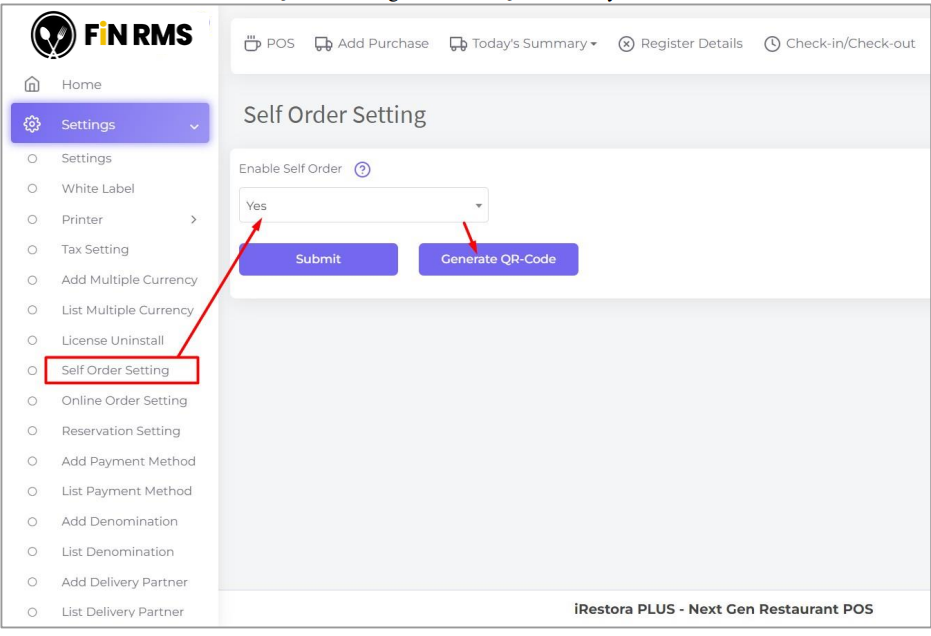
Go to settings from the left menu then click on “Self Order Setting”. Here. Enable self-order by choosing “Yes” and then click” Generate QR-Code” to generate the QR code for your tables.
After click on Generate QR-Code system show all of qr code for self order as per outlet wise
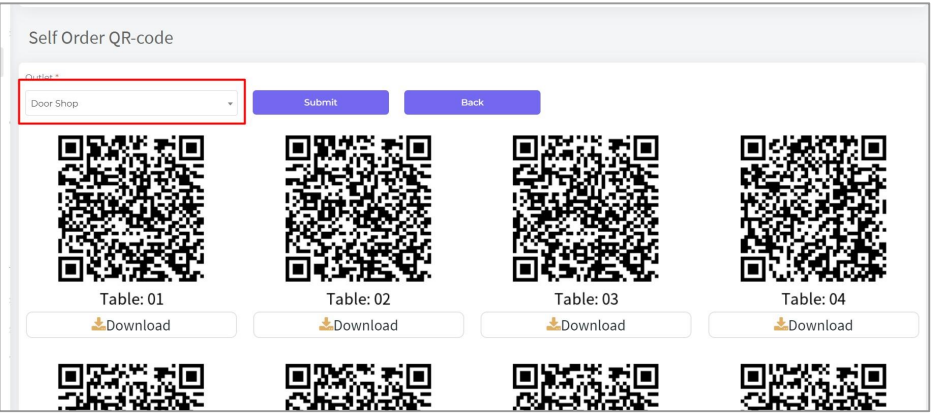
Print these QR Codes and put on the tables.
Customers can order after scanning the qr code code for a specific table. Let’s place an order by scanning the table 01 QR Code.
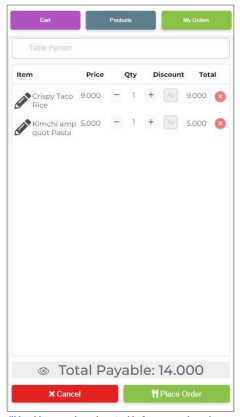
My orders: Customers will be able to see the orders. And before accept the order system will allow to modify
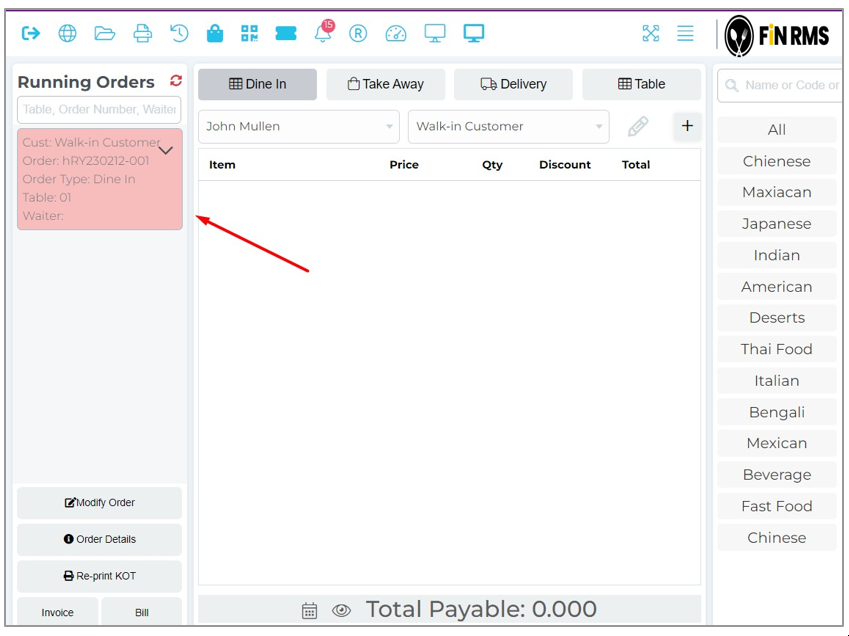
System will provide a notification when customer will placed an order after scan the qr code
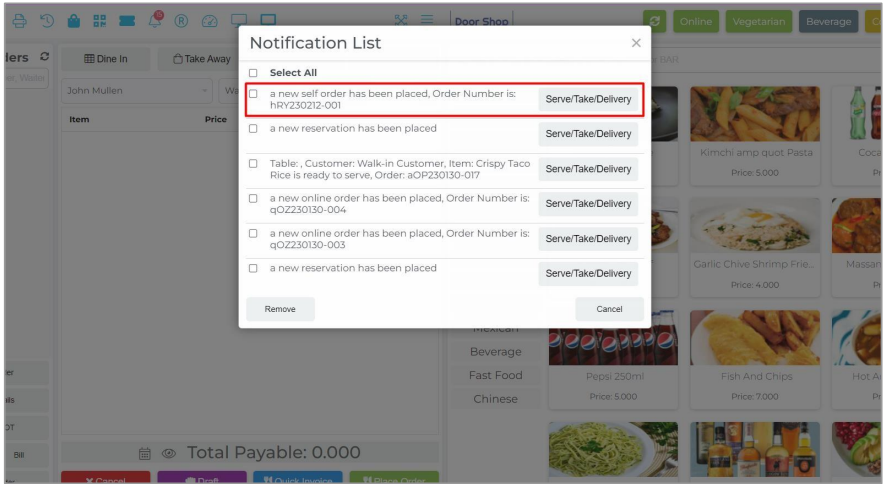
Now Cashier/Admin can accept/decline the self order.
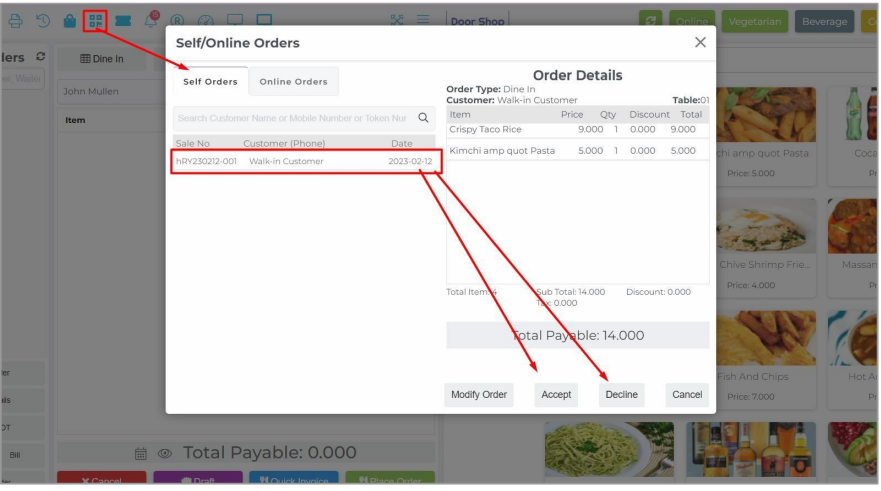
Note: After accepting the order, the system will not allow you to modify the order from customer My Order list.
Now marked as Running Order for processing.