Item
Home / Documentation /
Outlet
Item
POS
Kitchen Panel
Printer
Order Status Screen
Toppings
Promotion
Delivery Management
Combo Item
Item Variation
Product
Stock Transfer
Attendance
Manage Users with Access
Expense
Supplier Due Payment
Customer Due Receive
Report
- Register Report
- Z Report
- Product Analysis Report
- Daily Summary Report
- Food Sale Report
- Daily Sale Report
- Detailed Sale Report
- Consumption Report
- Stock Report
- Low Stock Report
- Profit Loss Report
- Attendance Report
- Supplier Ledger Report
- Customer Ledger Report
- Purchase Report
- Expense Report
- Waste Report
- Tax Report
- Food Menu Sale By Category Report
- Waiter Tips Report
- Audit Log Report
- Available Loyalty Point Report
- Usage Loyalty Point Report
- Transfer Report
- Production Report
Self Order/QR Code Order
Online Order
Reservation
Multiple Currency
Dashboard
SMS (Short Message Service)
Software Update
Export and reset daily sales
Reset Transactional Data
License Uninstall
Credits
Ingredient Category
Ingredient categories are Meat, Vegetable, Fruit, Spice, etc. In a restaurant, ingredients are separated by categories. Chicken, beef, mutton are meat, chili, cinnamon, and cumin are spices, and potato, tomato, carrot are vegetables, and so on.
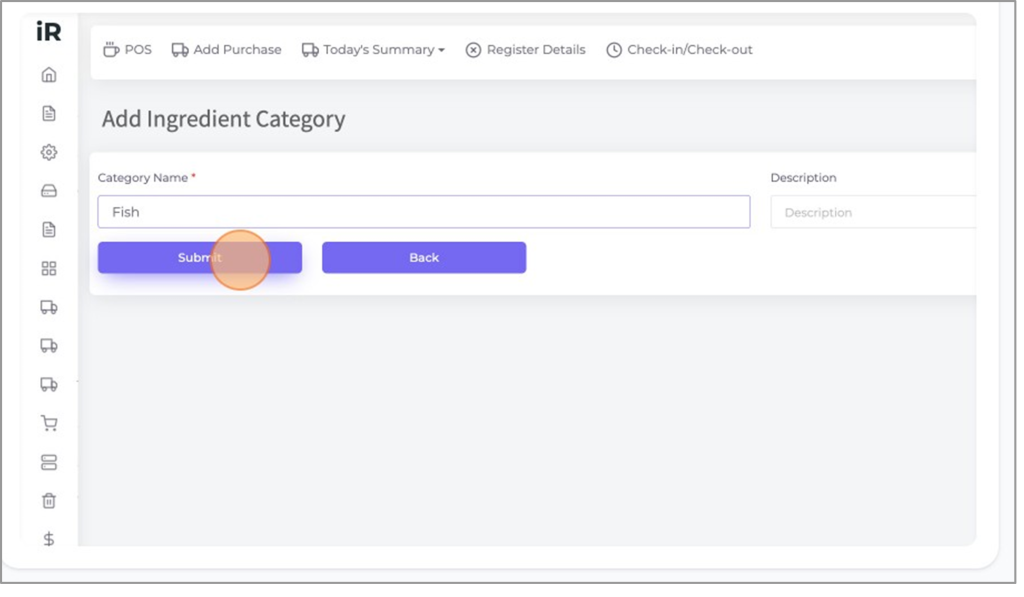
Go to “Item” from the left menu, and then click on “Add IngredientCategory”.

Category Name: Enter your ingredient category name here.
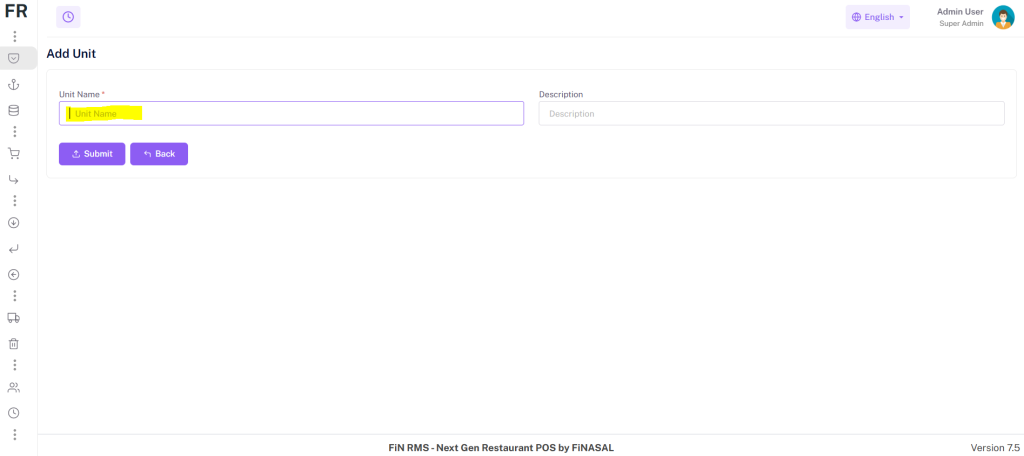
Click “Submit” to save this ingredient category.
Go to “List Ingredient Category” and view your all Ingredient Categories here. Here you can edit or delete any Ingredient Category by using the edit or the delete button from the Action column in the list.

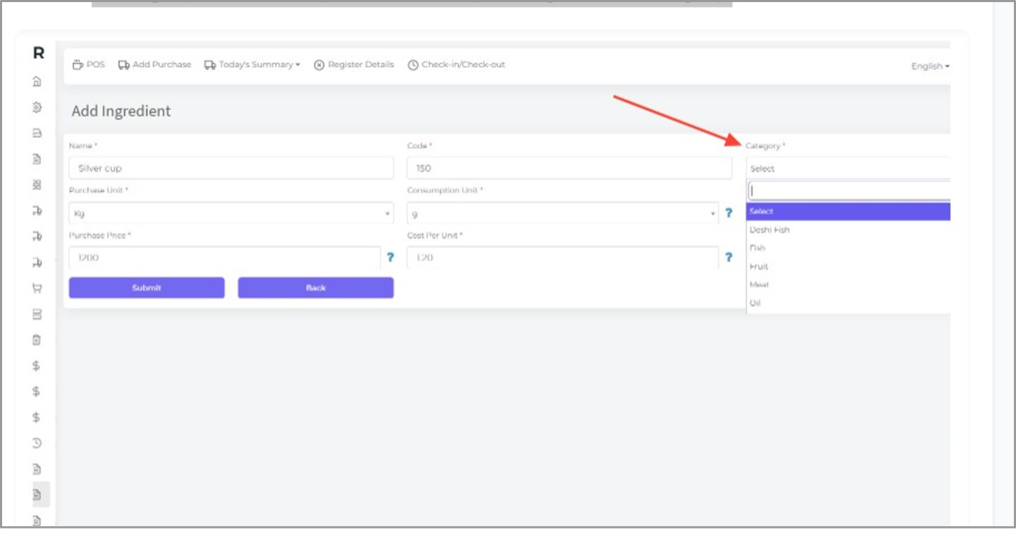
When you go to add an ingredient the ingredients category will show on that “Category” field. Here you can select your ingredient category.
Ingredient Unit
Ingredient units are Kg, Litre, ml, g, Pcs, etc. These units are used to buy/purchase an ingredient and prepare food. Like buying in Kg and using PCs to make food.
Go to “Item” from the left menu, and then click on “Add Ingredient Unit.

Unit Name: Enter your ingredient unit name here. This unit helps you to purchase any ingredient unit-wise.

Click “Submit” to save this Ingredient Unit name.

Go to “List Ingredient Unit” and view your all Ingredient Unit list here.
Here you can edit or delete any Ingredient Unit by using the edit or the delete button from the Action column in the list.

Your Added Ingredient units are shown on the “Purchase Unit” and “Consumption Unit” fields when you are going to Add an Ingredient.

Ingredient
Ingredients are the things you use to make a Food Menu. e.g: potato, beef, chili, onion, salt, etc.
Go to “Item” from the left menu, and then click on “Add Ingredients”.

Click the “Name” field and enter here Ingredient name here which you want to add. The “Code” field will auto-generate a code for the ingredient but you can enter a specific code that can be used to identify the ingredient quickly. In “Category” select the category of this ingredient. Purchase Unit: Select the unit that you use to buy/purchase this ingredient. Like you buy in KG. Consumption Unit: Select the unit that you use when making food. Like you use in Pcs when making food.

Conversion Rate: Conversion Rate is How many Consumption Unit is equal to 1 Purchase Unit. Like you get 14 Pcs of cucumber in one Kg. So Your purchase unit is Kg and Consumption unit is Pcs Purchase Price: Enter here your ingredient purchase price(in purchase units). Cost Per Unit: It will be auto-generated by this formula: Purchase Price/Conversion Rate = Cost Per Unit. That will help you to set the price for a food menu.

If your Purchase Unit and Consumption Unit both are the same like both are Pcs, then you need to select the same unit in both fields and put 1 in the Conversion Rate field.
Alert Qty: In case your Low Qty is 10Kg (in purchase unit) and your stock is 9Kg then the system will show this ingredient as red marked. That means this ingredient is under low Qty.

Here you can see the stock of this ingredient is under the low quantity in this case the stock of the ingredients shows a red text alert.

Go to “List Ingredients” and view your all ingredients list here. Here you can edit or delete any Ingredient by using the edit or the delete button from the Action column in the list.

Upload Ingredient
You can upload bulk ingredients easily by using this method.
Go to the “Item” section from the left menu click on “List Ingredient” and then click “Upload Ingredient”.

Click “Download Sample” to download the sample file of uploading ingredients.

After downloading open the file it will show an xl sheet where you can input your all ingredients. Please follow the instructions given in red color to put your ingredient information.

After adding the all ingredients details save it and select the file from the “Choose file” section then click “Submit” to upload the ingredients.

After uploading the file you can see the Ingredients are Added here successfully.

Food Menu Category
Here you can add your food menu category like Chinese, Thai Food, Mexican Food, Desert, Indian Food, etc.
Go to “Item” from the left menu, and then click on “Add Food Menu Category”.

Category Name: Here enter your food menu category name. Then click “Submit” to save this food menu category.
Go to “List Food Menu Categories” and view your all food menu category list here.
Here you can edit or delete any Food Menu Category by using the edit or the delete button from Action in the list.

Food Menu
Food Menus are the items you sell from your restaurant. Here you can manage your food menus and also you can define associated ingredients along with the amount to prepare that food. Also can calculate the cost of making the food so that you can set the price of the food menu and all other things like tax, photo, etc.
Go to “Item” from the left menu, and then click on “Add Food Menu”.

Click “Food Menu Type” and select “Regular” type. We will discuss “Combo” and “Product” food menu types later in other tutorials.

Click on the “Name” field and enter the name of your food menu here. Code: The code will be auto-generated but you can enter your own unique code for this food menu so that you can identify this food menu quickly.
In the “Category” section select the food menu category.

In this “Ingredient Consumptions” section select the ingredient that you need to make this food menu. Also, you can select ingredients by searching.

After selecting the ingredients, enter the consumption in the “Consumption” field of every ingredient. You can see the Consumption Unit just right beside the Consumption field as per the selected ingredient. The system is working here as a Consumption Unit.
Cost: This is the Cost Per Unit of the selected ingredient. Like how much money will be the cost for 1 Pcs, or 200g, or 100ml, etc. It will be auto-populated by default but you can change it by yourself. The formula for auto-populating the cost per unit is like below:
If the selected ingredient is purchased before then the system will calculate the average of the last 3 purchases and populate the cost here, if there are only 2 purchases there, the system will calculate the average of that two, or if there is only one purchase, the system will populate that purchase price. Remember the system will always consider dividing the purchase price by the conversion rate if the ingredient’s purchase unit is different from the consumption unit.
And if there is no purchase record of that selected ingredient then the unit price will come from your added ingredients profile’s cost field and shown here in the cost per unit. Total: This is the Unit Cost multiplied by the consumption.
The total making cost of this food menu will show in the “Total Cost” field.

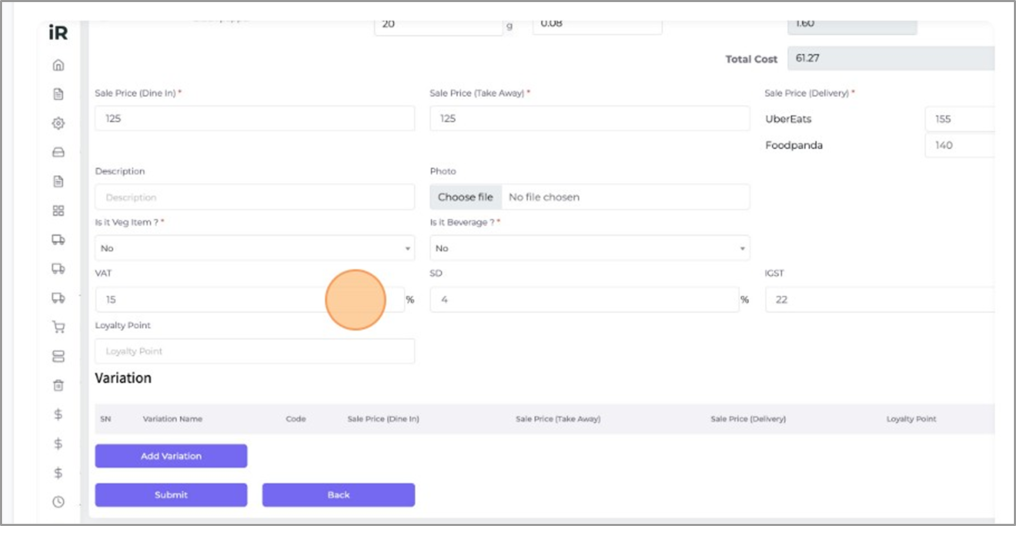
You can set different prices for different order types. Click the “Sale Price (Dine In)” field and enter the price of selling for Dine in order type.
Click the “Sale Price (Take Away)” field and enter the price of selling for the Take-Away order type. The cost calculation will help you to set the food price.
Note: You also can change outlet-wise different prices for the food menu from the outlet Edit option if you are using the Multi Outlet version of this software.
Sale Price (Delivery): In this field, you can set different prices for this food menu for different delivery partners.
Here you can enter different prices for different delivery partners.
Please go to Setting->Add Delivery Partner to add delivery partners you used to deliver with. Note: if you have no delivery partners then the system will give you the facility to enter your own delivery price.

Also, you can set your price as per your outlet setting. now go to the outlet edit form and set it as per your outlet food menu price with different types.

Is it a Veg Item?: Sometimes vegetarian people come to restaurants and ask to tell them the names of vegetarian items only. This feature is built to tell only the vegetarian food names quickly to that customer.

You will get the Vegetarian button on the POS screen.

Tax: In this section, the Taxes will be auto-populated from “Tax Settings”. If the food menu taxes are different from the default tax then you can change it yourself by using these tax fields.
In the POS screen, taxes will be shown like this:

Go to “List Food Menu” and view your all food menu here. Here you can edit or delete any food menu by using the edit or the delete button from the Action column in the list.

Pre-Made Food
Pre-made food is also food that is used to make final food. It is similar to an ingredient. Like you use pizza dough to make pizza, here pizza dough is a pre-made food. A pre-made food has its own ingredients to prepare and it has its own stock. So when you make a pre-made food, ingredients used for that pre-made food get deducted from stock and stock of the pre-made food gets increased. And also as you use that pre-made food same as an ingredient in a food so when you make sale of that food item that pre-made food stock also gets down.
Click on “Add Pre-Made Food” to add a pre-made food item.
Click “Download Sample” to download the sample file of uploading ingredients.

Click the “Name” field and enter the name of your Pre-made food item. The food identification code will be auto-generated in the “Code” field. Select the category name of this food from the “Category” drop-down.

Ingredient Consumption: Select the needed ingredients from here and enter the consumption unit of those ingredients in the “Consumption” field. On the side of the consumption unit field, you can see a box where you can enter the cost of the entered consumption unit.

Consumption Unit: Here you can select the unit of consumption. Cost Per Unit: In this field enter the cost of per unit for making this premade food. Alert qty: Add an alert quantity it will alert you when the item is going under the quantity low stock. Then click “Submit” to save this pre-made food item. Your Added pre-made food will show when you go to add a pre-made food into production. To put pre-made food into production then you need to go to “Add Production” from the left menu.

Here “Reference no” of this production will be auto-generated. You can set your production date in the “Date” field.
Pre-Made Food Item: Here you can see your added pre-made food list. Select any of the premade food which you want to give in production.

In this status field you can see 2 options one is “Draft” which is for saving this production which means the production is ongoing or not done yet. Another one is “Final” which means the production is done. Only the “Final” status will be affected on the stock

Click the “Quantity/Amount” field and enter which amount or quantity of pre-made food you need. Then click “Submit” to save it in production.

Here in “Stock”, you can see there is no stock for this pre-made food. It will be effected in stock when the production status will be “Final”.

When your production will be done. Then go to the “List Production” from the left menu and edit your production by clicking on the action button.

Here you can change the status of your production when it’s done and set the status to “Final”. Select the “Final” option and click “Submit” to save it. Now it will affect the stock.

Here you can see the stock updated. At the same time, the stock of ingredients used for that premade food will get deducted.

Here you can make food by using your pre-made food. Go to “Add Food Menu” and make food by using your pre-made food.

When you are selling any food which is made by pre-made food it will be deducted from the stock automatically.
For selling a food item here you can see the deduction of the pre-made food in stock.