Basics
Home / Documentation /
Outlet
Item
POS
Kitchen Panel
Printer
Order Status Screen
Toppings
Promotion
Delivery Management
Combo Item
Item Variation
Product
Stock Transfer
Attendance
Manage Users with Access
Expense
Supplier Due Payment
Customer Due Receive
Report
- Register Report
- Z Report
- Product Analysis Report
- Daily Summary Report
- Food Sale Report
- Daily Sale Report
- Detailed Sale Report
- Consumption Report
- Stock Report
- Low Stock Report
- Profit Loss Report
- Attendance Report
- Supplier Ledger Report
- Customer Ledger Report
- Purchase Report
- Expense Report
- Waste Report
- Tax Report
- Food Menu Sale By Category Report
- Waiter Tips Report
- Audit Log Report
- Available Loyalty Point Report
- Usage Loyalty Point Report
- Transfer Report
- Production Report
Self Order/QR Code Order
Online Order
Reservation
Multiple Currency
Dashboard
SMS (Short Message Service)
Software Update
Export and reset daily sales
Reset Transactional Data
License Uninstall
Credits
The Basic Info section provides essential information and instructions related to user authentication and account management within the software. Below, you will find details on login page credentials, changing passwords, and recovering forgotten passwords.
Login Page
Admin:
Email: admin@rmsfinasal.com
Password: 1234567

Change Profile
Go to “Account and User” from the left menu.
Click on “Change Profile.”
Update your name, email, or phone number.
Don’t forget to save your changes.

Use this section to update your personal details. Keeping your information up to date ensures smooth communication.
Enter your Name, Email Address, and Phone Number in the given fields.
Make sure the information is correct before saving.
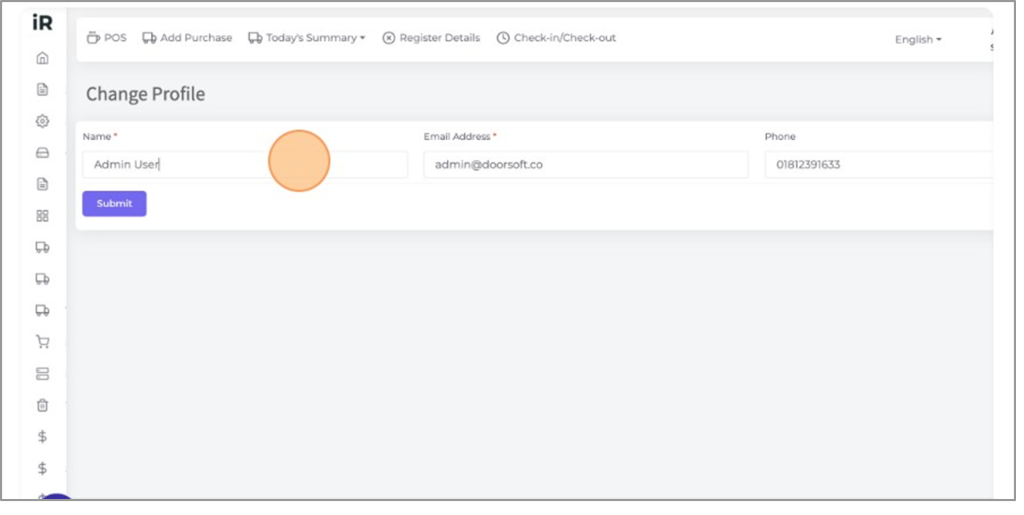
Once you have entered your details, confirm your changes to update your profile.
- Click on the “Submit” button to save and apply the changes to your profile.


Change Password
Use this option to change your password regularly for better security. Updating your password helps keep your account safe.
Go to “Account and User” from the left menu.
Click on “Change Password.”
Enter your current password and set a new one.

After opening the Change Password section, you can update your login credentials.
Enter your old password and then your new password.
Click the “Submit” button to save the changes.
Your password will be updated successfully.
Change Pin
The login PIN allows you to access the software quickly without entering your full password. You can update it anytime for security.
Open the login panel where you normally enter your PIN.
Follow the steps to change your login PIN as instructed.

Use this option to update your login PIN for quick and secure access to the software.
Go to “Account and User” from the left menu.
Click on “Change Pin” to update your login PIN.

After opening the Change Pin section, you can update your PIN securely.
Enter your old PIN in the “Old Pin” field.
Enter the new PIN you want to set in the “New Pin” field.
Click “Submit” to save your new login PIN.

Set Security Question
Setting a security question helps you reset your password if you ever forget it. New users are required to set a security question before using the system.
Go to “Account and User” from the left menu.
Click on “Set Security Question.”
Choose a question, enter your answer, and save it to enable password recovery.

After opening the Set Security Question section, you can choose a question for password recovery.
Click the “Security Question” drop-down menu.
Select any question from the list that you prefer.

After selecting your security question, provide an answer to complete the setup.
Click the “Security Answer” field.
Enter the answer to your selected question carefully.

Click on the “Submit” button to save it.
Forgot Password
In case you forgot your password, you can set a new password without any email or verification, you just need to follow some steps with the security question that you set before from the admin panel.
Click “Forgot Password?”

This step verifies that your email address is linked to your account.
Enter your email address in the given field.
The system will check if your email is registered and valid.

Click “SUBMIT”


This step confirms your identity by verifying your previously set security question and answer.
Select your security question from the drop-down list.
Enter the correct answer in the field provided.
Click “Submit.” If both are correct, you can proceed to the next step.

After verifying your security question and answer, you can now set a new password.
Enter your new password in the first field.
Re-enter the same password in the Confirm Password field.
Click “Submit.” The system will save your new password and redirect you to the login page.