Waste Tracking
Home / Documentation /
Outlet
Item
POS
Kitchen Panel
Printer
Order Status Screen
Toppings
Promotion
Delivery Management
Combo Item
Item Variation
Product
Stock Transfer
Attendance
Manage Users with Access
Expense
Supplier Due Payment
Customer Due Receive
Report
- Register Report
- Z Report
- Product Analysis Report
- Daily Summary Report
- Food Sale Report
- Daily Sale Report
- Detailed Sale Report
- Consumption Report
- Stock Report
- Low Stock Report
- Profit Loss Report
- Attendance Report
- Supplier Ledger Report
- Customer Ledger Report
- Purchase Report
- Expense Report
- Waste Report
- Tax Report
- Food Menu Sale By Category Report
- Waiter Tips Report
- Audit Log Report
- Available Loyalty Point Report
- Usage Loyalty Point Report
- Transfer Report
- Production Report
Self Order/QR Code Order
Online Order
Reservation
Multiple Currency
Dashboard
SMS (Short Message Service)
Software Update
Export and reset daily sales
Reset Transactional Data
License Uninstall
Credits
Ingredient Wise Waste Tracking
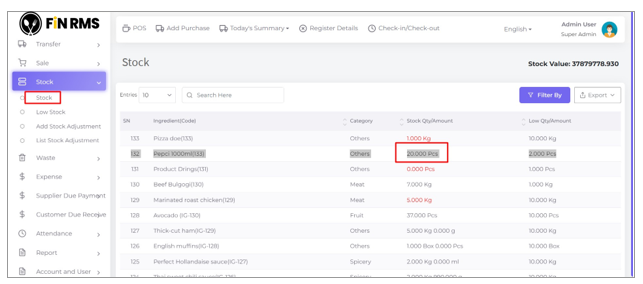
Check ingredients stock which are wasted. Now go to the Stock menu.
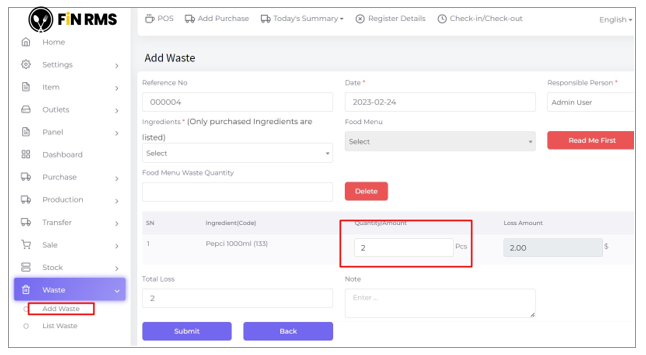
Tracking ingredient wise waste, now let’s go to the waste module.
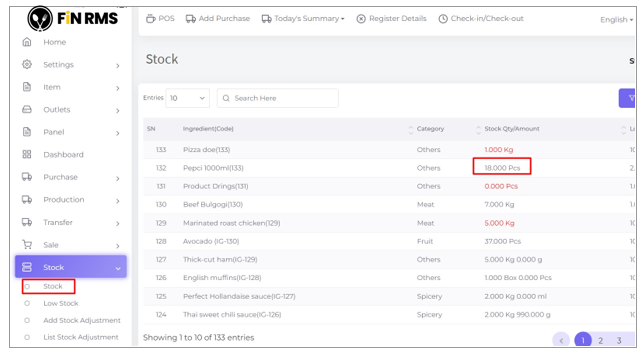
After saving it, check ingredients stock for deducted status which are used in the waste.
Food Menu Wise Waste Tracking
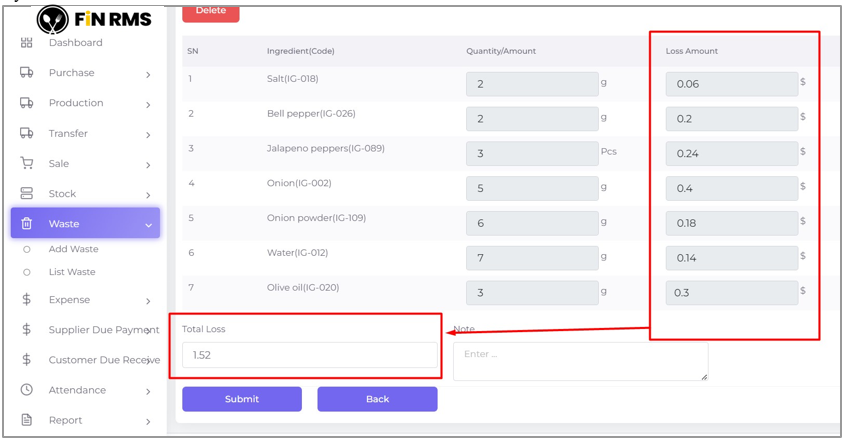
Go to the Waste menu and select a Food Menu with a quantity, then the system will add all ingredients which are used in the food menu profile.
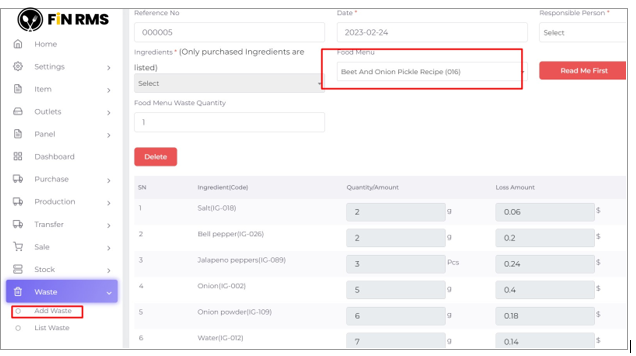
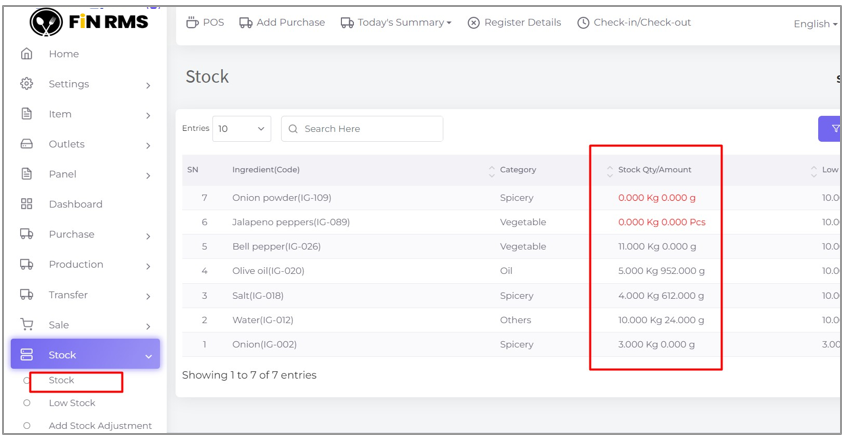
Check the food menu ingredients stock which are used in the selected waste food menu. Now go to the Stock menu.
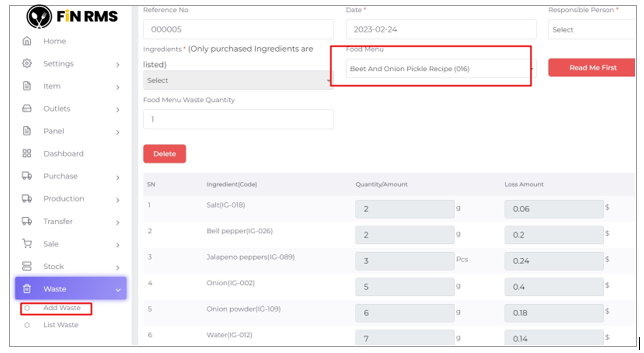
Now save the wasted food menu. And check ingredients stock for deducted status which are used in the waste food menu.
Loss Calculation
System will calculate the total loss amount.